

 Installation And Upgrade
SongBook runs on all devices with Android 8 or later. It is optimized for the current Android versions and for tablets. See demo video on Youtube.
Please download SongBook from the Google Play Store. Buying via the Play Store will ensure you get all updates automatically. Alternatively, if the Play Store is not available for you, you can also purchase and install/update directly from our web site. SongBook is also available for Amazon Fire tablets.
SongBook requires the following Android permissions: Internet (for cloud sync), Read and Write external storage (for reading/writing song files), Wake Lock (for keeping the screen on while showing a song), Access WiFi State (for Chromecast support), Check License and Get Accounts (for license checking and cloud sync).
Your songs are stored in directory /Android/data/com.linkesoft.songbook/files on the (built-in) external storage which you can access via USB connection. Note: The song directory will be deleted with all songs and playlists when you uninstall the SongBook app. Please back up your songs via USB or cloud sync.
Note for updates: Android has changed the rules where apps are allowed to store files. When you update from a previous version of SongBook, your files will automatically be moved to the new default location.
See the bottom of this page for the full version history.
Where To Find Songs For SongBook
SongBook uses the chordpro format, a plain text file format where chords are written in square brackets within the lyrics. It can also work with tab files. Unfortunately, we cannot provide songs on this site due to copyright restrictions. However, the Internet has huge archives of songs in chordpro format: simply type the song name and file extension pro or chordpro into your favorite search engine, e.g. "song title" chordpro. Or use the built-in Internet search.
You can also easily create your own chordpro songs. Just write the lyrics as usual and insert the chord names in square brackets at the appropriate positions as in the following example:
[Em]Alas, my [G]love, you [D]do me [Bm]wrong,
SongBook will render this as:
| Em | G | D | Bm |
| Alas, my | love, you | do me | wrong, |
A detailed explanation of the chordpro format as supported by SongBook is available here.
Note: Our desktop applications SongBook Windows and SongBook Mac make it easier to edit or convert chordpro and tab songs on a bigger screen.
How To Get Songs Into SongBook
SongBook stores all songs in a directory called /SongBook on your device built-in externally available storage. This is a directory that can be shared via USB (select Media Transfer Protocol MTP). A sample song Greensleeves.pro is automatically put into that directory when you first start SongBook. You can change the SongBook directory in Settings. You can also store songs on an SD card (if available) in directory /Android/data/com.linkesoft.songbook/files.
The following file extensions are understood by SongBook:
*.pro, *.chordpro, *.chopro, *.cho, *.txt (chordpro files)
*.tab *.crd (tab files, chords on separate lines)
*.pdf (PDF files)
*.lst (playlist files)
*.chords.txt (user defined chords)
SongBook can also open files with supported extensions from e.g. mail attachments or other sharing apps and copy them into the SongBook directory. Select menu Add Song - File to add files stored locally on your device.
Note: SongBook does not work with DOC files, because these cannot be easily reformatted, transposed, searched etc. You need to save your songs in plain text format (*.txt) to use them with SongBook.
Cloud Sync
You can synchronize your song collection with Dropbox, or Microsoft OneDrive (consumer only), or Nextcloud, or with a public folder available in the Files app (this could also be a USB drive). Simply link with with your cloud account in Settings, and copy your song files to the /SongBook folder (uppercase S and B) and its subdirectories in the main Dropbox/OneDrive/Nextcloud folder. Use the Synchronize menu entry of the song list to start the synchronization. Press the Back button to stop the sync at any time.
If your files do not show up in SongBook, check whether they have one of the supported file extensions (see above).
Synchronization is two-way and (except for the first sync) includes deletions and modifications on both sides. For technical reasons, subdirectories of the SongBook directory (categories) can only be renamed/removed on the device. To overwrite all songs on the device, unlink SongBook from your cloud storage in Settings, then delete all data (via the Settings menu), then link the app again.
The Dropbox, OneDrive or Nextcloud app is not required to sync.
To synchronize SongBook Windows or SongBook Mac with SongBook Android, just select the Dropbox/OneDrive/Nextcloud SongBook folder on the PC/Mac as your song folder (with the "..." button next to the category dropdown). Then link and sync SongBook Android as described above. See this video for details.
Coming soon:SongBook Cloud sync and share.
Song List
Songs are structured in categories. Categories are somewhat similar to folders on your computer. You can group songs in categories to help you organize them e.g. by genre or difficulty. Just like folders on your computer, deleting a category will delete all songs in it. In addition, songs can also be organized in playlists and filtered by tags.
Use Edit Categories on the Categories dropdown at the top to add, rename or remove categories. Removing a category will also remove all songs in that category. Songs that are not assigned to a specific category will appear in category - Unfiled -. To put a single song in a different category, tap-and-hold (long tap) the song in the song list and select Change Category from the popup menu.
You can fast scroll in long lists by starting to scroll normally, then swiping on the right hand side.
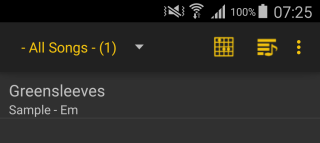
The song list displays title/subtitle and key of all songs in the selected category. SongBook determines the key by looking at the first chord in the song, or the value of the {key: ...} directive.
You can search for a song by title or full text.
Long tap on a song to delete it, add it to a playlist or perform some other actions on it.
 Song View
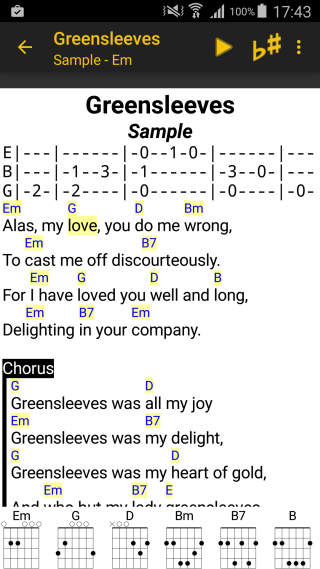
The song view displays the current song with lyrics and chords. Tap on a chord to look up the chord definitions.
Chord, lyrics, comment, and tab font and text/background color can be changed by selecting Settings from the song list menu.
Tap anywhere on the screen to show/hide the action toolbar at the top (full screen mode). You can switch this function off in Settings.
You can also change the font sizes for the current song with the familiar "pinch" gesture. Use the Save Zoom menu button to save the current zoom level with the song (as a {zoom-android: } directive) so that this particular song will always display in the selected size.
You can optionally show a chord band at the bottom of the screen. This chord list shows the easiest variant for each chord currently visible on the screen.
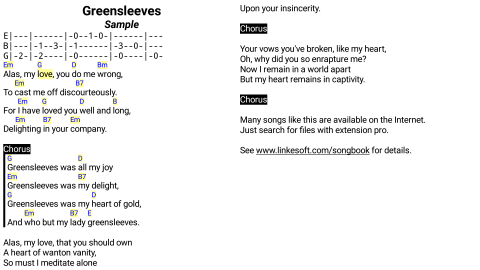
Unlike zooming of pictures, zooming of songs in SongBook will trigger a re-layout of the song, so you will never have to scroll horizontally. Use menu Auto-Zoom to set the current zoom factor so the song will fit on the screen without scrolling. SongBook will automatically switch to multi-column mode if the song is narrow enough and would fit without scrolling on the screen.
If you have a Google Chromecast device in your network and select it from the Chromecast button , SongBook will display the current song in landscape auto-zoom mode on the connected Chromecast TV/projector. Note: this feature does not work on devices that don't have the Google play services installed.
Swipe left/right or double-tap in the middle part of the screen left/right to move to the next/previous song in the currently selected category/playlist. Double tap in the lower or upper third to scroll one page down or up.
Note: SongBook will automatically increase the auto power-off (idle) timeout while a song is displayed.
Pedals
You can use AirTurn or similar bluetooth or USB pedals to scroll page-wise up/down and switch to the next/previous song in the current category or playlist. The latter can be switched off in Settings. There you can also configure to start auto-scrolling with a pedal down. The page percentage to scroll can also be configured.
The pedals should be set to send Page Up/Down or Arrow Up/Down keys. In addition, the following keys are supported:
- Ctrl-P: Start/Stop Auto-Scroll
- Ctrl-M: Play linked music
- Ctrl-O: Start/Stop Metronome
- Ctrl-Q: Quicklist
- Ctrl-E: Edit
MIDI pedals can also be used.
 Concert Mode
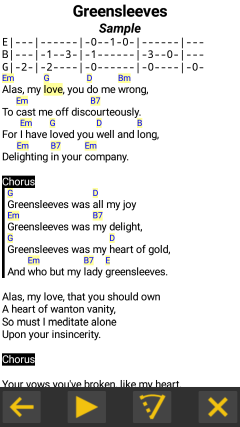
You can select a special concert mode for simplified usage in live situations in the menu. When this mode is active, the song will be displayed full-screen, with a few bigger buttons at the bottom to go back to song list, start/stop auto-scroll, start/stop music, start/stop the metronome and exit concert mode. In concert mode, you cannot tap on a chord, instead, you can single tap in the upper/lower part of the screen to scroll up/down, and swipe left/right for the next/previous song.
Long-tap on the metronome or auto-scroll button to bring up a toolbar with more controls.
Transpose
You can transpose the song into a different key by tapping on the Transpose menu button. Tap on the buttons to change the tuning in half-tone steps. Use the "All b" and "All #" buttons to convert all # chords to their b equivalent or vice versa. Tap on the Save button to permanently save the changed chords in the song.
You can use Set Capo to define a fret for a capo. This works just like a transpose down the same number of steps, but will show a Capo: ... indicator at the beginning of the song. The other transpose functions are not available while a capo is set.
The transpose menu at the right-hand side lets you convert song chords into the Nashville Numbering System which will convert all chord names into numbers 1,2,3... This only works if a key is set in the song (with Set Key from the menu). If a song is already in Nashville Number format, you can convert it back into regular chords (again based on the defined key). Chord lookup will also work for Nashville numbers.
Auto-Scrolling
The play button on the Auto-Scroll menu will start auto-scrolling the song. You can adjust the total playing time mm:ss of the song (including the last page) with the slider or the +/- buttons. Tap Save to save the playing time in the song (as a {time: } directive). To temporarily pause the current scrolling, double-tap anywhere on the screen.
You can insert optionally insert {pause: x} directives somewhere in a song, where x denotes a pause in seconds (e.g. {pause: 20} to pause 20 seconds). When the line with this pause statement reaches the top of the screen, auto-scrolling will pause for this amount of time. You can also put that directive at the top of the song to delay the auto-scroll start. The total playing time set above includes all pauses.
If you want to play along with a song stored in your Android Music library, you can link a SongBook song to music via the menu Link With Music. Once the song is linked, select the Notes icon  in the action bar, or the Play Linked Music menu item to play the music. You can start/pause the song, and rewind/fast forward in 10sec intervals.
Another way to link music with a song is to copy an MP3 file into the SongBook folder, then insert a {musicpath: file.mp3} statement in the song. This works across devices and platforms. Note: for PDFs, there is an automatic link to a music file with the same name in the same folder, e.g. Song.pdf -> Song.mp3
You can insert multiple {musicpath: ...} statements to switch between different backing tracks, e.g. for rehearsals.
Play together
You can link multiple Android devices running SongBook (Android 10 or higher, device must have Google services installed) together, so they will always show the same song and scroll to the same line. Enable Bluetooth or WiFi on all devices (no Internet connection required), then select Play together from the song list menu to start the search for other devices. When you first activate this option, you will be asked to grant some location-related permission. These are only used by the underlying technology to find nearby devices. SongBook does not track or record your location. To avoid circular or double connections, you must specify a unique name on each device
If a song is not found on one of the connected devices or has a different content it can be copied automatically. When you transpose a song, the transpose step will also be sent to the other devices. The connection is peer-to-peer: every device can control all other devices. When a device switches off or shows the lock screen, the connection will be dropped. SongBook will automatically try to re-connect once it is back in the foreground.
Metronome
SongBook features a simple metronome. You can save the selected metronome tempo in the song. Select Metronome- Flash in Settings to switch to a silent metronome which will flash a color bar at the top of the song. Select Metronome - Tick/Flash Count In in Settings to auto-stop the metronome after two bars.
If the song contains a {time: 3/4} directive or similar, the metronome will sound with an up-time beat, and the number will also be used for count-in.
 Internet Search
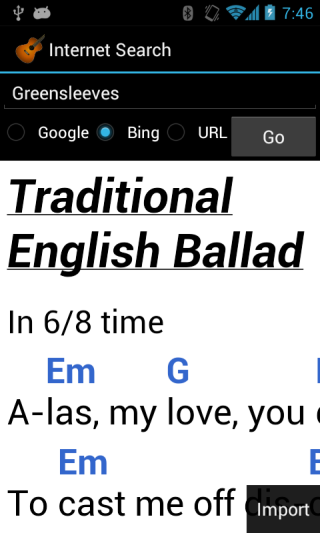
SongBook has a simple Internet search for chordpro files built-in which you can start from the song list menu. You can use one of the two main search providers, or type a URL of your own. Once the page is loaded an Import button will appear in the lower right and open the song editor with the currently selected page. Sometimes the imported page will contain other text at the top or bottom which you need to manually delete. If the song is in tab format you can use a menu entry in the editor to convert it to chordpro format.
You can then save the song in the currently selected song category (with the back button) or cancel the edit and get back to the search view.
Note: By it's very nature, Internet search can be hit-or-miss, results may vary. We do not have any influence on what the search will find or how the imported pages look. You are responsible for obeying the respective copyrights of material found on the Internet.
MIDI-Support
SongBook supports MIDI (if the device supports it). When MIDI is activated in menu Settings, SongBook will connect to all input and output sources on the MIDI bus.
You can select a song with a MIDI command by inserting a directive {midi-index: <command>, <command>, ...} in the song.
You can also send certain MIDI commands when opening a song by inserting {midi: <command>,<command>,...} in the song. You can use multiple {midi: ...}
commands in a song for better structuring, they will all be sent together when you open the song.
You can also use a MIDI pedal to scroll up/down in a song, by entering the respective command in Settings.
The general MIDI command syntax is <Command><MSB>.<LSB>:<subvalue>@<channel> (see table below). However, in most cases it is easier to just select the MIDI command from the list of last received commands (via menu in song editor, or for up/down pedal in Settings).
| Command | Explanation | Example |
| N | Note (On/Off) | N60 |
| PC | Program Change | PC6 |
| CC | Control Change/Bank Select | CC100.10 |
| SS | Song Select | SS99 |
| START | Start | START |
| PAUSE | Pause milliseconds before sending next command | PAUSE10 |
| XX.XX.XX... | Arbitrary bytes (e.g. System Exclusive) | F0.42.30.73.00.41.F7 |
For testing, write {midi: N60} anywhere in the song. This will play a C1 note on a connected keyboard whenever you display this song. Alternatively, if you have {midi-index: N60} anywhere in the song, this song will be displayed whenever you play a C1 on the keyboard.
Note: MIDI is a very complex topic. Unfortunately we're not able to help with specific questions about MIDI setup or MIDI commands.
Tags
To further organize your song collection, you can assign arbitrary tags to any song. Select Tags on the main song list screen to filter songs by tags. When you remove a tag, the song is not deleted. However, if you delete all songs that contain a certain tag, that tag will disappear from the list of tags. Unlike with categories, songs can have several tags assigned. In the song, tags are stored with a {tag: xx} directive.
In the tags menu, you can filter songs by multiple tags, and choose whether you want to see songs that match any tag, or all tags.
Tab files
Songs that are not in chordpro format, i.e. don't have a {title: } or {t: } directive are considered tab files. Unlike chordpro files, tab files have separate lines for the chords, like
 Em       G         D     Bm
 Alas, my love, you do me wrong,
To have fixed chord positions regardless of font preferences, SongBook renders tab files with a fixed font (also in the editor). SongBook will automatically recognize chords within the tab file, render them in chord color, transpose them or let you look up the chord fingering. You can switch off tab support in Settings. The song editor has a menu entry that can convert songs in tab format to chordpro format by inlining chords with lyrics.
PDF documents
SongBook can display PDF documents. It will always show a single page at a time, or two pages in landscape mode. You can scroll to the next/previous page with swipe down/up, or a double tap or a pedal. You can reference PDFs in playlists. However, PDFs cannot be edited, tagged, transposed etc.
To import PDFs, use "Open In/Share with" SongBook, or copy them with an USB connection or Dropbox sync.
By default, the full PDF page is displayed. Use menu Zoom to Content to crop the page borders.
Song Editor
You can edit songs or add new songs. Use menu Font Larger or Font Smaller to change the font size in the editor. The Preview menu shows you a preview of the currently edited song without saving it. In landscape mode, the preview will only take up half of the screen so you can edit and see your changes in realtime.
The Insert Chordpro menu lets you easily enter the most common chordpro control statements. The Insert Chord menu lets you easily insert chords which are already contained in the currently edited song.
If a song is not yet in chordpro format (e.g. does not have a {title: ...} line), the menu will contain an entry Convert Tab, which will inline the chords in square brackets in the lyrics lines.
 Playlists (Set Lists)
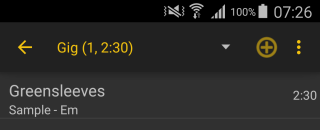
Playlists (aka sets) are collections of songs for a special purpose, e.g. a concert, or training. Removing a song from a playlist does not delete the song from either the device (it remains in its category), nor any other playlist the song might be in. Songs can be in multiple playlists, and in fact, can occur multiple times in a single playlist.
Use the Add Songs menu to add songs to a playlist. Long press on a song in the playlist to remove it from the playlist.
To change the order of songs in a playlist, check the Order menu entry and drag-and drop songs.
Select Edit Playlists from the playlist dropdown to add, remove, rename or duplicate playlists.
You can optionally number the songs in a playlist with the menu Number Songs so you can easier navigate to a certain song in a playlist.
Playlists can automatically transpose songs to different keys. To store a different key for a song in a playlist, open the song from the playlist (not from the song list), then transpose it as usual, but do not save the transposed song. If a playlist song has a different key then the original, the key will be shown in italics.
Note: Playlists contain only references (title and subtitle) to the real song. If you delete the song, it is not automatically removed from the playlists but can no longer be viewed.
You can add notes to playlists, e.g. "Break" or a short story to tell between songs. These notes are displayed and edited just like normal songs, but are only stored in the playlist.


 Chords and Instruments
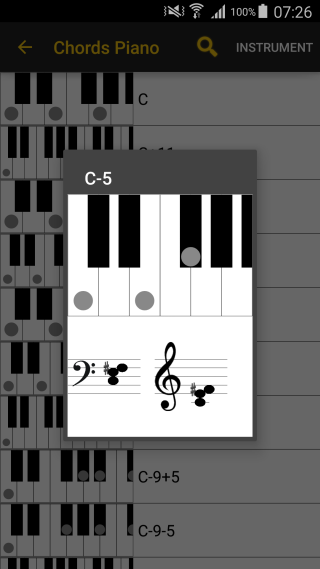
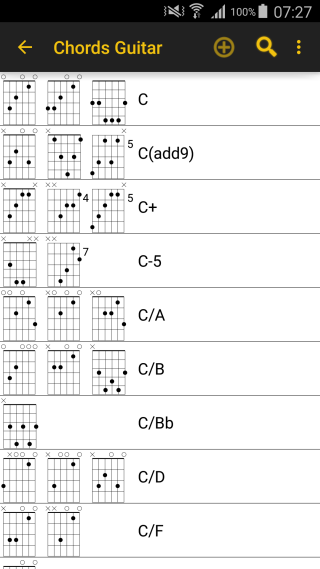
SongBook comes with comprehensive chord libraries for guitar, ukulele (C, D tuning, Bariton), mandolin, banjo, and piano. You can view and change the tuning of the selected instrument in Settings.
Chords are sorted by base pitch. Each chord can have several variations. SongBook knows about identical pitches (e.g. C# = Db).
By default, SongBook displays the most simple variation (lowest base fret, least number of fingers) in the chord band. If you always prefer a certain variation, you can mark it as favorite. If you want a different variation for a certain song, you can define the chord variation in the song. If you know most chords already you can use an option in the Chords menu to show only chords defined in the song in the chord band.
To change the currently used instrument, select Settings - Instrument. This instrument is used for all chord lookups.
You can search in the chord list by chord name or fingering. Enter e.g. 2 2 1 to find Am (and other chords with these fingers).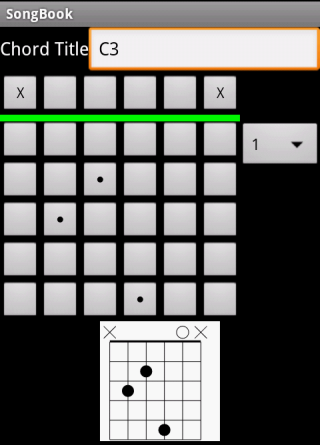
You can extend the string chord libraries with your own chords. SongBook comes with a chord editor that lets you define fingerings, base fret and muted strings. The search button on the right will look up the currently defined chord in the chord library.
User defined chords will always show up in the last position in the chord view. Note: if you need a special chord only for a certain song, you'd better define the chord in the song with {define: G 1 3 2 0 0 0 3} rather than in the chord library.
Own and favorite chords are saved in a file <instrument>.chords.txt in the documents folder. You can edit it with a text editor. If you want your extra chords appear in the built-in SongBook chord libraries, please send us this file.
Feedback
Do you have a song that is not rendered correctly? Is an important chord missing in the chord database? Please let us know.
Version History
- 6.9
- Option to switch off tap to fullscreen
- New chord option to show only chords defined in the song (useful if you know most of the chords already) - 6.8
- New sync option to sync with a folder in the Files app. This can also be a USB drive.
- Display setting to mark chords in [], e.g. to make them stand out more when Inline Chords is also active - 6.7.4
- Warn about upcoming discontinued Google Drive sync - 6.7.3
- Fix crash with notes in playlists - 6.7.2
- Fix linked music for PDFs - 6.7.1
- Fixed crash when MIDI was switched on - 6.7
- Improved rendering of piano chords
- Search for chords by notes, e.g. A C E -> A
- Improved PDF zoom
- Support multiple {midi: } lines for better structuring, will all be send together
- Support multiple {musicpath: } backing tracks, select which one to play when tapping the music icon (iOS 14 or higher) - 6.6.2
- Fix overlapping chords in inline chords mode
- Fix Nextcloud sync
- Fix for PDFs: Allow swipe to next page/tap for fullscreen if Free Zoom is on - 6.6.1
- Fixes an issue when adding files from cloud storage
- Fixes an issue for showing chord diagrams in song on chord-only lines - 6.6
- Fix background color issue with pedal scrolling if white on black lyrics
- Fix text could be zoomed to very small (unreadable) levels
- Minimum Android version 8 - 6.5.1
- Fixes an issue with uploading to MS OneDrive - 6.5
- Allow whitespace in pseudo chords, e.g. [Verse 1]
- Confirmation popup if sync would delete more than 10 files in a folder/category
- Fixes for Play Together mode - 6.4
- Support for time signatures like {time: 3/4} in metronome
- Categories/Playlists as lists side by side with song list also on large tablets (not only xlarge)
- Option to show larger chord diagrams
- Play Together mode
- Menu in Settings to delete all local data (to start over fresh from a backup or cloud sync)
- Czech translation thanks to Ladislav Chadraba - 6.3.3
- Fix for MIDI connections - 6.3.2
- Fix for crash in playlists with missing songs
- Fix for chords with custom tuning - 6.3.1
- Fix for chordpro songs without chords - 6.3
- Syntax highlighting in the song editor - 6.2.1
- fix for linking with music - 6.2
- Support for MIDI PAUSE
- Create user specific quick comments on long press (if user is set in Settings)
- Enable transpose even if a capo is set - 6.1.1
- Link with music also via file picker
- Fix "Open in SongBook" functionality on some Android versions - 6.1
- Mark chords as favorite (will be preferred in chord band)
- Small corrections and enhancements - 6.0.1
- Support raw bytes for sending MIDI commands
{midi: F0.42.30.73.00.41.F7}
- Fix size of chord diagrams in song - 6.0
- Inline images with {image: src="file.png"} file.png (or jpg) must be in the same folder as the song file
- Support {duration: ...} for total playing time (compatibility with chordpro format)
- PDFs can be zoomed
- Fix OneDrive sync with a shared folder
- Fix for Dropbox connection errors - 5.9.1
- Fix for Nextcloud Sync - 5.9
- New song location /Android/data/com.linkesoft.songbook/files due to new Android rules
All files will be automatically moved on first start
Songs are no longer preserved when you uninstall the app
- New instrument Greek Bouzouki
- Performance improvements
- Apply "color lists" setting also to tag lists
- Fix for Dropbox/Google Drive logout - 5.8.1
- Performance fix for playlists on Android 8 - 5.8
- Show chord diagrams in song (song display menu)
- Add songs to playlist from tags
- Change category of songs in search result list - 5.7.1
- Fix for "Open In SongBook" function - 5.7
- Support {artist: ...} (like subtitle)
- Fix next song display for PDFs
- Fix reset custom song tuning - 5.6.3
- fix for MS OneDrive sync - 5.6.2
- Support user specific highlighting {soh-User}
- Link with music for PDFs
- Ignore playlist notes in song count
- Support shortcuts in Google Drive - 5.6.1
- fix for linked music search - 5.6
- Notes in playlists
- Nextcloud sync
- Set total playing time in song when linking with music
- Improved Link with Music search
- Various fixes - 5.5.1
- Several fixes - 5.5
- Option to show all chords at once on chord bar (in multiple rows/columns)
- New instrument Cigar Box Guitar
- Allow multiple MIDI commands in {midi-index: <command>, <command>, ...}
- Several fixes - 5.4.1
- Song display option to show next song title
- Improved Nashville Number conversion
- Various improvements and fixes - 5.4
- Support for Jazz Grilles chord grids with {start_of_grid}/{end_of_grid}
- Long tap anywhere on a song to quickly add a comment
- Several smaller enhancements and fixes - 5.3.1
- Show category of song in - All Songs - list
- New instrument Fiddle (double stops)
- Fixes for cloud sync
- Several smaller fixes - 5.3
- Sync songs with Microsoft OneDrive
- Start/Stop Music button in Concert Mode
- Several smaller fixes - 5.2.1
- fix crash when adding songs to a playlist on large displays - 5.2
- Option to color lists in lyrics foreground/background color (e.g. black on white)
- Fade-out music
- Show song count and playing time when adding songs to a playlist
- New color picker
- Mark songs with linked music in list with note symbol ♫
- Several smaller fixes - 5.1.2
- allow bigger font size settings on high-res displays
- several fixes - 5.1.1
- fixes for Google Drive Sync - 5.1
- Show Lyrics only hides {sot}/{eot} tabs
- Display power off is also delayed if only used with pedals
- Important fix for playing linked music
- Several smaller fixes - 5.0.2
- restructed preferences
- more fixes - 5.0.1
- fixes - 5.0
- Sync with Google Drive
- Stability improvements for Dropbox Sync
- Search in song list when adding songs to playlist or tag
- Add files stored on the device to SongBook with file picker
- Automatic chords for custom tunings
- Various keyboard (pedal) shortcuts when viewing a song
- Show number of songs when editing categories
- Support /bass chords when transposing
- Do not show tabs in Lyrics Only mode
- Minimum Android version 4.4 (Kitkat)
- Removed Pebble support
- Several fixes - 4.9.4
- small fixes and improvements - 4.9.3
- fix for trailing chords in "center narrow songs" mode - 4.9.2
- center narrow songs (can be switched off in Show... menu)
- new instrument Mountain Dulcimer
- sort songs in tag list like in normal song list
- smaller corrections - 4.9.1
- small fixes - 4.9
- enhancements for filtering songs by tags
- several fixes - 4.8
- new instrument Ronroco, fixes for Charango
- In concert mode, a long tap on the metronome or auto-play button brings up the respective toolbar - 4.7.2
- several smaller fixes - 4.7.1
- Option to switch off categories/playlists secondary list (on larger tablets) - 4.7
- Can sort playlists by date (newest first)
- Improved tablet support
- Multi-window support
- French translation thanks to David Léonardi - 4.6.3
- Fix for pedal handling in full screen/concert mode
- Fixes for metronome - 4.6.2
- fix for crash on Android 4.2/4.3 - 4.6.1
- fix for initial SongBook directory creation
- enhanced Ukulele C chord database - 4.6
- Special concert mode
- Option to store songs on SD card (directory /Android/data/com.linkesoft.songbook/files)
- Duplicate song creates unique title to avoid issues with playlists
- Smaller fixes - 4.5
- Swipe up/down to scroll PDFs
- show current/total time in music toolbar
- Small fixes - 4.4
- Option to number songs in playlists (in playlist menu)
- Fix for Dropbox Sync of very large song collections - 4.3.2
- minimum Android version 4.0
- fixes for Chromecast
- fixes for Dropbox Sync - 4.3.1
- fixes for Dropbox Sync - 4.3
- New and improved Dropbox Sync Note: you need to re-link with Dropbox, the first sync may take some time, but subsequent syncs are faster and more stable than before
- Several fixes - 4.2.2
- new instrument Guitalele
- small fixes - 4.2.1
- several layout related fixes - 4.2
- User/instrument specific tabs, e.g. {sot-Guitar}...{eot} or {sot-Lead}...{eot}
- Auto-save changes to playlists to Dropbox (if linked)
- Export/import layout settings
- New icon, visual improvements
- Fix for instrument-specific comments {c-Guitar:Comment for guitar player}
- Smaller fixes - 4.1.3
- fix Chromecast issue - 4.1.2
- Instrument specific directives for define so you can have one song file with different custom chords for different instruments:
{define-Guitar:...}, {define-Ukulele_C: ...}
Note: when looking up a chord, the first matching define wins, so instrument or user specific defines must come before general ones
- Smaller fixes - 4.1.1
- improved import from Internet search
- smaller fixes - 4.1
- Option to start linked music with auto-scrolling
- Auto-link PDFs to MP3 file with same name (e.g. Song.pdf -> Song.mp3)
- Song-specific custom tuning with {tuning: ...}
Note: must be used in conjunction with {instrument: ...}
E.g. for Drop D Guitar tuning, write
{instrument: Guitar}
{tuning: D A D G B E}
- Improvements for PDF handling
- Playlist menu simplified
- Smaller fixes - 4.0
- Optionally mark end of song
- Open In/Share with SongBook for PDF files (Android 5 or higher)
- Menu to remove all songs in a playlist
- Smaller fixes - 3.9.2
- fix for Chromecast display
- fix for PDF display when connected to Pebble smartwatch - 3.9.1
- Small fixes - 3.9
- Can zoom PDF to content
- Can now choose between centered/left aligned title/subtitle (Display menu in song view)
- Performance improvements if song directory contains large PDF files
- Smaller fixes - 3.8.2
- Deep linking by title/subtitle to songs with URL scheme songbook:
songbook:///show?Greensleeves
will open the sample song Greensleeves in der SongBook-App. Separate titles/subtitles with %20-%20, e.g.
songbook:///show?Greensleeves%20-%20Traditional
- Smaller fixes - 3.8.1
- several fixes - 3.8
- Support PDFs (Android 5.0 or higher)
- User-specific directives for comments, capo, instrument, so you can have one song file with different instructions for guitar/bass, or lead/background:
{comment-<user>:...}, {capo-<user>: ...}, {instrument-<user>: ...}
User specific directives will only be shown if <user> is set in menu Settings - Current User.
- fixes - 3.7.2
- fix for chord bar
- updated Polish translation thanks to Maciej Bator - 3.7.1
- Option to show chord bar on the right
- Entries for {title: } and {subtitle: } in editor chordpro menu (if song does not contain it)
- Fixes - 3.7
- Automatic playlists for last modified and last opened songs
- New instrument 5 string bass (Bass_5)
- Option to show left-handed chords
- Create playlist from a whole category (from Edit Categories... long press item menu)
- Use first line for title if song is not in chordpro format
- Improvements for import from Internet Search
- Smaller fixes - 3.6
- MIDI-Support for selecting songs, sending commands or pedal up/down (Android 6.x)
- Support for type-setting in right-to-left languages (Hebrew, Arabic, Persian,...)
- Smaller fixes - 3.5.4
- Use current font/color settings also on Chromecast
- Turkish translation thanks to Ercag Duymaz
- Smaller fixes - 3.5.3
- Some smaller fixes - 3.5.2
- Several fixes - 3.5.1
- Several fixes - 3.5
- Support for capo
- Support for Nashville Number System (convert song to/from NNS, look up NNS chords)
- Quick song list navigation from song view
- Duplicate song
- Option to show only lyrics on connected chromecast device (in Show... song menu)
- Smaller fixes - 3.4
- Share songs as text
- Print/PDF for playlists (Android 4.4 or higher)
- Keep metronome running when changing songs
- Sort playlists by key
- Allow relative paths for linked music, {musicpath: file.mp3} plays local music files in SongBook folder)
- Bigger chord band on large tablets
- Smaller fixes - 3.3
- Improved song search
- Duplicate playlists
- Option to show chord names in German format (B->H, Bb->B)
- Hide top/bottom bars when going full screen on single tap (Android 4.4 and above)
- Smaller fixes - 3.2.2
- fix for playlist reordering on Android 5
- several smaller fixes - 3.2.1
- Fixes for Chromecast support - 3.2
- Show playing time in playlists (if set in song via {time: ...})
- Sort playlist by subtitle and undo sort
- Fixes for printing/PDF creation (from Android 4.4)
- Several smaller fixes - 3.1
- Sort songs by date
- Allow italics in font settings
- Configurable list font size
- Store zoom device specific as {zoom-android-<device>: xx} to support multiple Android devices
- Search for playlists also in sub folders of the SongBook folder (useful if you share your SongBook folder via Dropbox with others)
- Fix fast scroll indices in song list - 3.0.1
- Fix for crashes on Android 3.x
- Action bars now also on Android 2.x - 3.0
- Send playlist as file, text, or with all songs as attachments
- Configurable amount for page scroll
- highlight in custom colors with e.g. {soh #xxxxxx} (hex web colors)
- Support for showing songs on Google Chromecast
- new instrument Charango
- Several smaller fixes - 2.9.2
- fix metronome tick options - 2.9.1
- auto-hide metronome toolbar
- include subtitle in search
- fix: don't open Gmail notifications - 2.9
- Option to mark {soc}chorus{eoc} with bar, indent or shade
- Show play music button in action bar next to auto-scroll button (if music is linked)
- Option to start auto-scrolling with pedal down (or double tap in lower third of song)
- Metronome option to count in (auto-stops after 8 ticks/flashes)
- Several fixes - 2.8
- Show key for songs in playlists (if found)
- Store current transpose step for songs in playlists (if you don't save the transposed song)
- Show current song key in song view title bar
- Optional preview in song editor
- Show song count in tags dropdown
- Print/PDF with standard colors
- Access Settings also from song view menu
- Several fixes - 2.7.1
- Fix for crashes on some devices - 2.7
- Print/PDF support (Android 4.4/KitKat only)
- Option to ignore A/The when sorting titles/subtitles
- Option to not show moving gray scroll overlay on last page when auto-scrolling
- Slower page scrolling when using pedal or double-tap
- When auto-playing, pedal scroll will only scroll two lines up/down
- Integrate with Pebble smartwatch app
- Fix: a saved tempo was not correctly converted into playing time
- Several fixes - 2.6.1
- Buttons All b and All # for transpose
- Fix for opening files from other apps
- Several fixes - 2.6
- Use playing time {time: mm:ss} instead of tempo for auto-scrolling (includes pauses and last page, independent of zoom)
- Easier re-ordering of songs in playlists with long press and drag (Android 4.0 or higher), toggle in menu
- Open *.pro, *.txt (songs) and *.lst (playlist) files in SongBook app, from web sites, local apps, or mail attachments
- Slower page scrolling with pedals/double tap, fading page scroll indicator (Android 3.0 or higher)
- Song specific instruments with {instrument: xx}
- Instrument selection from chord list
- Show song title/subtitle in song view toolbar
- Several fixes - 2.5.1
- fixed a problem with Internet search on newer Android versions - 2.5
- Support for tags in songs (like on iOS)
- Invert color option in Settings
- Insert Chord menu in song editor
- Fixes for Dropbox sync
- Several fixes
- Minimum Android Version 2.3.3 - 2.4.3
- Small fixes - 2.4.2
- Songs can be added multiple times to a playlist (from song view)
- Fix for unreadable song list on Samsung Note 8.0 - 2.4.1
- fix for broken Dropbox incremental sync - 2.4
- SongBook directory can be changed in Settings
- Fix for highlight font not zoomed correctly
- Fix for handling pedal page up/down for scrolling on some devices - 2.3.2
- Fix for broken rendering of some UTF8 encoded songs with BOM - 2.3.1
- Fix for metronome flash setting not saved correctly - 2.3
- Tab support: songs that have chords on separate lines, and no {title: } control are shown in fixed font, chords are auto-detected, can be switched off in settings
- Convert tab to chordpro in editor, for non-chordpro songs
- Flashing metronome
- Stability fixes for Dropbox sync
- Various fixes - 2.2.1
- Accelerometer sensitivity was not correctly saved - 2.2
- Inline chords for compact song display (via Show... menu)
- New chordpro directive {pause: xx} to pause auto-scrolling at this position for xx seconds
- Option to show latin chords (DO, RE, MI)
- Accelerometer scroll (shake to scroll)
- Various fixes - 2.1
- Play chords or current tuning
- Chord menu entry to define chord in song
- Setting to auto-zoom all songs, better zoom implementation on Android 3.0 and later
- Option to set whether scrolling with BT pedal will go to next/previous song
- Fix: could not go to next/prev song with BT pedal when song didn't need scrolling
- Fix: save/restore metronome tempo in song
- Various fixes - 2.0.1
- Fixes for low-res tablets
- Several minor fixes - 2.0
- Auto-Zoom
- Metronome
- Search for chords by name or fingering
- Separate font settings for comments
- Fix for crashes/lost settings when returning from other app
- Fix for disappearing song view popups when chord band was displayed
- Minor fixes - 1.9
- Custom tunings
- Make song edit font larger or smaller
- Smooth swiping to next/previous song
- Performance improvements
- Remember last position in song list
- Fix for playlists that contain songs with hyphen (-) in title or subtitle
- Minor fixes - 1.8
- Enharmonic transposition
- New icon
- New instrument Banjo Tenor
- Show song count in playlists
- Performance improvements
- Minor fixes - 1.7
- Internet search
- Tap anywhere on screen to show/hide action toolbar (Android 3.x/4.x)
- Various fixes - 1.6
- Link with music
- Web links
- Send songs/playlists via mail/other apps
- Open songs (e.g. from attachments) in SongBook
- Update playlists when song title/subtitle changes
- Additional instruments bass guitar and Irish Bouzouki
- Minor fixes - 1.5
- Extensible chord libraries, compatible with SongBook for iOS and Windows
- Optionally show only lyrics/only chords in song view
- Support for different line endings (Mac/Windows/Unix)
- Minor fixes - 1.4
- Dropbox support
- Tablet support - 1.3
- piano chords
- optional chord band at bottom of song view
- double-tap while auto-scrolling will pause for 1 sec
- edit menu with chordpro controls - 1.2
- double tap to scroll up/down/next/prev song
- better scrolling
- hide auto-scroll view at end of song
- remember list position when returning from song view
- fix: could no longer zoom if song had a saved zoom factor
- fix: crash after editing a song - 1.1
- search songs
- keep display on while showing a song - 1.0
- First public version