
Installation And Upgrade
 Secret! runs on all current Android® handhelds with at least Android 4.4 or higher. You can install and purchase it directly from our web site.
This app requires the following permissions: Internet (for synchronizing with Secret! Desktop - only in the local network, never with a central server in the Internet), Read/Write external storage (for exporting Secret! data to the local storage), Check License and Get Accounts for license checking.
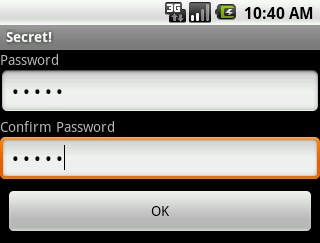
At the very first start of Secret! you need to define a new password. To avoid typos you have to enter it twice.
Password
Everything you store in Secret! is encrypted with a password of your choice. This password is used to encrypt and decrypt your data and only someone knowing this password can access your data. No back doors, no hidden weakness! If you forget your password, you will have to remove and reinstall Secret! as there's absolutely no way to get to your data without knowing the password.
The password can be up to 24 characters long and may consist of letters, digits, and special characters. The password is not case-sensitive to avoid problems with accidental caps lock.
You can encrypt different records with different passwords. This can be useful if you want to protect some especially important records with an extra-long and complicated password, or if you want to share some information with others using a general password.
Records that cannot be decrypted with the current password(s) will be marked with a hash sign (#) in the list. When you select such a record, Secret! will ask you for the password for that record. All passwords that you enter while you use Secret! are saved internally, so you do not need to enter them twice.
In the record list, select menu Change Password, to change the password for all records of the current category. Open a single record and select Change Password to change the password only for the current record.To protect against typos, you have to enter the new password twice.
Note that changing the password for multiple records will only work for those records that can currently be decrypted (i.e. are not marked with a hash sign).
 Data
Data
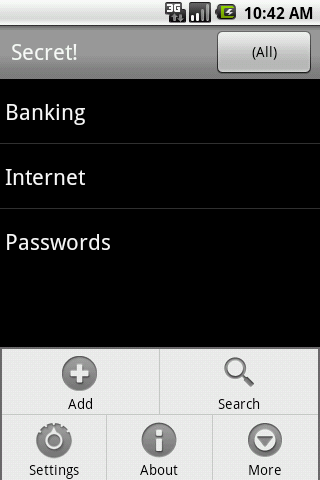
Secret! offers a two level concept of categories and records. You can create as many records as you want and assign an arbitrary category to each of them
You can store anything you like in Secret!, e.g. credit card information, accounts, on-line passwords, transaction numbers, one-time passwords and everything else that needs to be kept Secret! We've even heard of people storing their diary or birthday present lists in Secret!
To avoid accidental changes to very important data you can mark records as read-only in the Details dialog. In read-only mode, an R will be displayed next to the record title and the record background will be light gray.Tap on the title or select menu Edit Details to change the read-only setting.
To search in Secret!, tap on the Search button while in list view or in record view. Search is not case-sensitive and will find arbitrary sub-strings. Wildcards (*,?) are not supported.
To delete a record, long-tap on the record in the list, then select Delete from the popup menu.
Secret! contains a password generator which helps you create new passwords. The newly created password is inserted into the Secret! record and copied to the clipboard so you can use it in other applications (e.g. on a web site).


Collapse Mode
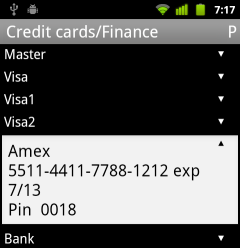 To let you quickly navigate in long records on the small handheld screen, Secret! features a special paragraph collapse mode. When you tap on the title or select menu Edit Details and select Collapse Paragraphs, all paragraphs (text blocks separated by an empty line) are collapsed to their first line. Tap on the arrow sign to the right of a paragraph to expand it into full view. The collapse mode is not available in Secret! Desktop (because the PC screen is usually large enough to see the whole text).
Synchronization
Synchronizing with Secret! Desktop requires both your Android and the PC on the same WiFi network.Your data is only synchronized in your local network, no central server on the Internet is involved.
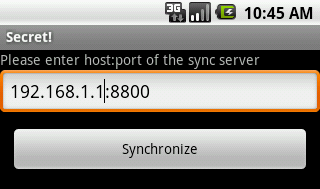
- Start Secret! Desktop, enter your password and select Tools - Synchronize with Android. Note the address of your PC that is displayed on this screen, e.g. 192.168.1.1:8800.
- Start Secret! on your Android and select menu Synchronize (if the menu entry is disabled then your Android is not connected via WiFi). Enter the address shown in Secret! Desktop on your Android, and tap Synchronize.
- Note: If Secret! Desktop shows multiple adresses, this means your PC is connected to multiple networks. You'll need to try the adresses one by one until you get a connection.
By default, synchronization is two-way, and will synchronize additions, deletions and modifications. You can select to overwrite the handheld or the desktop in the Secret! Desktop synchronization window.
When you cannot connect to Secret! Desktop, check that the address entered is the same as displayed in Secret! Desktop (if there are multiple addresses, try each of them). Also make sure your device is logged into your network via WiFi (not via cellular), and no firewall or security program is blocking network access to your PC.
If you cannot synchronize your data via WiFi, you can manually import/export encrypted data. In Secret! Desktop, select File - Export and export as file secret.dat. Copy this file via USB connection to the device, disconnect your Android device from the PC, then start Secret! on Android, enter your password, and select menu More - Import. Existing records will not be duplicated by an import.
TAN/OTP Mode
Do you use transaction numbers (TANs) for online banking or other one-time passwords (OTP) for secure authorization? Secret! has a special built-in TAN mode that makes using TAN lists easier than ever.
Enter your list of TANs line-by-line into a standard record, then tap on Details and switch to TAN mode. Now you can use the TANs one-at-a-time. If a TAN is used, press and hold the list item until the Delete popup appears. You can undo the last removed entry. To prevent accidental changes, new TANs can only be entered in standard mode.
Used TANs are internally marked with an asterisk (*). You can always see the complete list of TANs by unselecting the TAN/OTP mode. You can enter additional information below the TAN list, e.g. your account data. In normal mode, this text is separated from the TAN list by a single empty line.
Backup
Data stored in Secret! is usually very important to you. Make sure you have a current backup available in case your handheld is lost or breaks down. The backup is always encrypted, so there is no danger if someone gets access to the file.
If you use Secret! Desktop, the synchronization will automatically back up your data to the PC.
If you do not use Secret! Desktop, choose menu Export to export all data as a file secret.dat in the root directory of the external memory (which is accessible via USB). You can import this file in Secret! Desktop or in Secret! Android.
You can activate an automatic backup in Settings. This will write a full copy of the internal database to a file secret.dat in the root directory of the external memory. You can open this file with Secret! Desktop. If you're on Android 5.0 or higher, you can select an arbitrary directory for the backup.
License
We recommend to purchase Secret! in the Google Play Store because then you get updates automatically.
If you cannot purchase Secret! in the Play Store, you can purchase a license from us. Please make sure to provide the right user name as displayed in the Secret! registration window.
Version History
2.3.2
- Small fixes
2.3.1
- Fix keyboard on older Android versions
2.3
- Can select text in read-only and paragraph mode
2.2.1
- Fix permission issue when exporting/importing data
2.2
- Adjust to current Android APIs/design
- Requires Android 4.4 or higher
2.1.4
- Fix dim text color issues on some devices
2.1.3
- Scroll slightly down when navigating to search results so next lines are visible
- Remember last position/selection when switching to another app
2.1.2
- Fix for crash with Settings on Android 5.x
2.1.1
- Fix for backup option on Android 5.x
2.1
- Option to automatically write a backup file (with user selectable location on Android 5.0 and higher)
- Search will automatically search all categories if nothing is found in current category
- Need to press Back twice on record list to go back to Password screen (to avoid accidental close)
- Small fixes
2.0.1
- Fix for white text on white background on some devices
2.0
- Special Copy mode for read-only records on Android 4.0 or later
- Option to clear clipboard after 1 min
- Several fixes
1.9.5
- Fix for Android 2.x
1.9.4
- Security-Fix: suppress automatic screenshots of Secret! data in task switcher
1.9.3
- Fix for Android 2.x
1.9.2
- Fix Secret! edit window text/background color on some Android 4.x devices
1.9.1
- Several important fixes
1.9
- Better support for tablets and Android 4.x
- Category selector for changing category
- Show record count for categories
- - Unfiled - for records that are not assigned to a category
- Option for fixed (monospace) font
- Medium list size option
- Minor fixes and improvements
1.8
- Export single records encrypted or plain text
- Import plain text file (*.txt) as single record
- Case-insensitive search also in single record
- Fix for accidentally entering newline in sync URLs
1.7
- Collapsible paragraph mode for better overview in long records
- Option to erase all data after a number of successive invalid password entries
- Confirm saving changed records
- Fast scroll thumb for scrolling through large record lists
- Minor fixes and improvements
1.6
- don't disable sync menu if WiFi is not enabled (allows sync if TCP/IP connection possible via different means, e.g. bluetooth, tethering)
- mark read-only records with gray background
- editable categories list
- export secret.dat file with time stamp
- import file selection
- remember last open record
- remember selection when switching between readonly and read-write
- search in record view
- clickable link option now in text context menu
- Goto TAN field
1.5
- Fix search results when searching for title
- Fix for category handling
- Minor fixes
1.4.1
- Compatible with Android 1.5 and 1.6
1.4
- Options for setting font size for list and text
- Improved display of search results
- Minor fixes
1.3
- Optional number pad for password input
- Improved display of search results, back button gets back to record list
1.2
- Sync history (useful if you synchronize with multiple PCs)
- Smooth scrolling in long text fields
- Minor fixes
1.1
- Password generator
- Option to switch on/off automatic linking of URLs (if on, regular copy/paste doesn't work)
1.0
- First public version